Has an offer just hit your inbox? Or are you juggling five at once on the same listing? Your RLTRsync Offers dashboard keeps every offer on every listing organized, so you can compare, respond, and update the buyer’s agent without leaving the page.
Navigate To Your Offers Dashboard
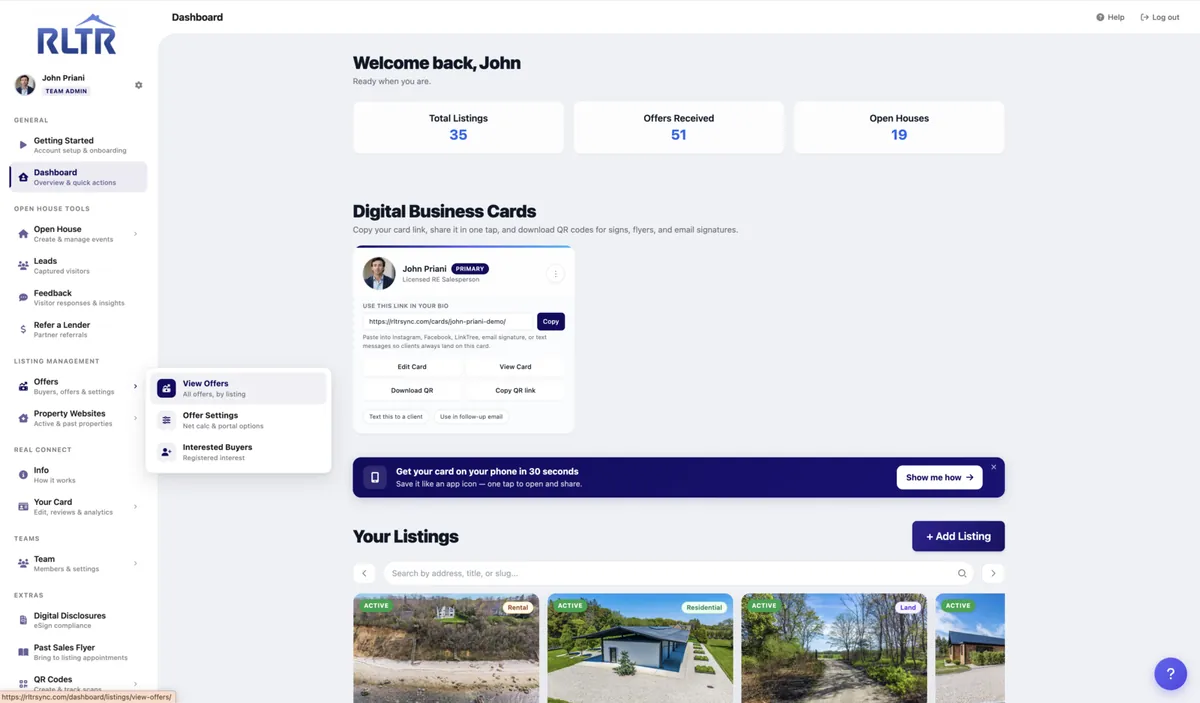
From the left-hand menu of your dashboard, click Offers, then View Offers. This is your home base for every offer on every active listing.
Select Your Listing
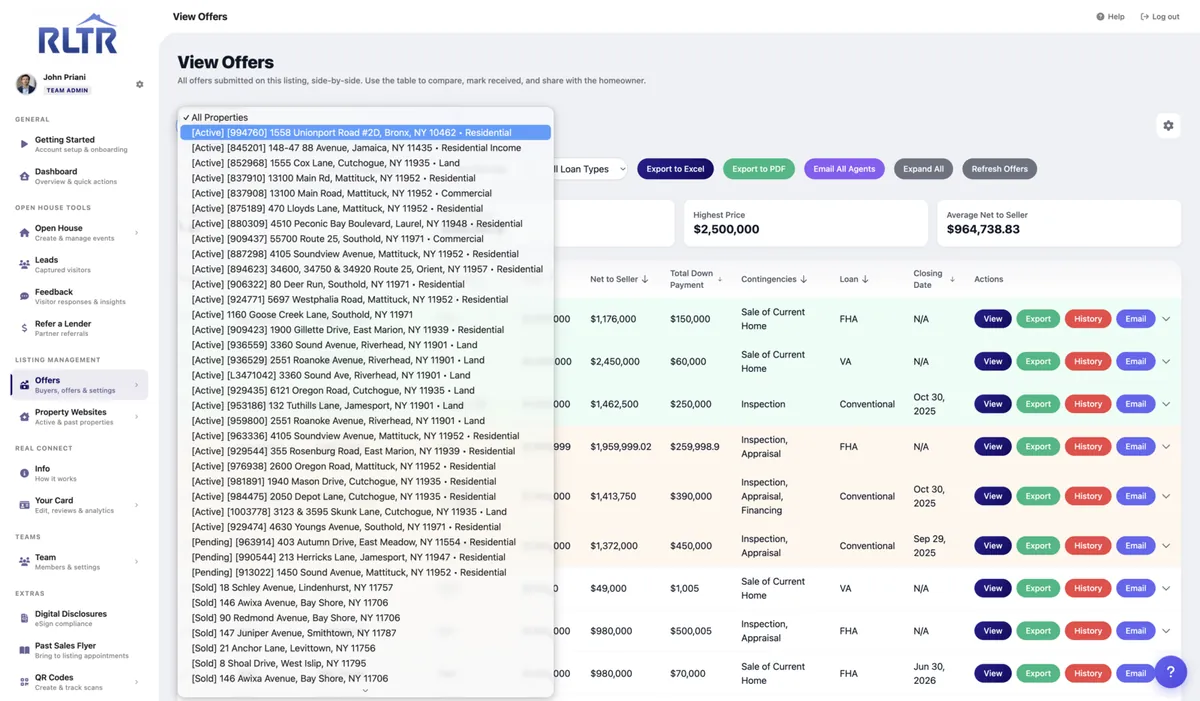
Use the Listing dropdown at the top of the page to choose which property you want to view. RLTRsync groups your active listings first, with sold and withdrawn properties further down the list, so the listing you’re working on right now is always within easy reach.
Add & Manage Offers
Once you’ve chosen a listing, every offer submitted on it appears side-by-side in the offers table.
To log an offer that came in outside RLTRsync, whether by email, phone, or fax, click the Add Offer button to enter the details manually. Anything submitted directly through your offer portal lands here automatically.
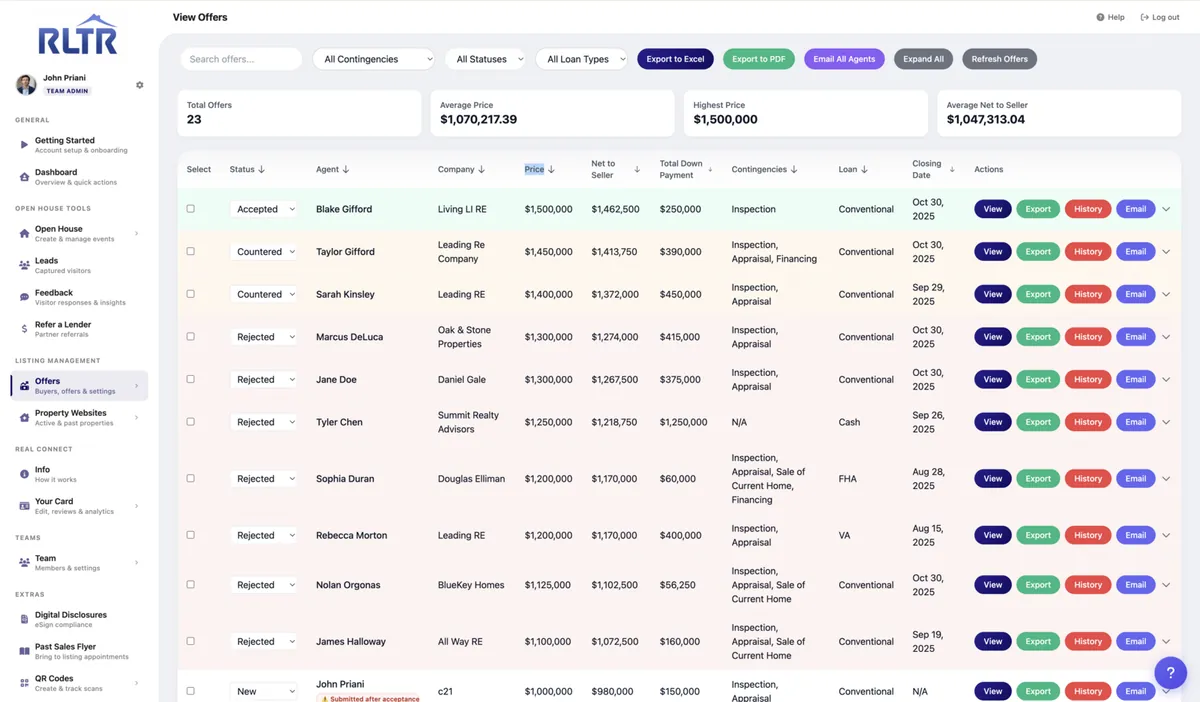
Each offer carries a status badge that you control: New, Updated, Accepted, Rejected, Countered, Backup, or Withdrawn. When you change a status to Accepted, Rejected, or Countered, RLTRsync will offer to send a pre-written email notification to the buyer’s agent so no one is left wondering where things stand.

Compare Offers Side-by-Side
When you have two or more offers to weigh against each other, tick the checkbox on each offer you want to include, then click Compare. RLTRsync will pull the key terms (price, financing, contingencies, close date, escalation, and more) into a single side-by-side view you can walk through with your seller.


Need to take the comparison off-screen? From inside the comparison view you can Export the side-by-side as a PDF or Excel file, or download an individual offer’s deal sheet as a PDF, perfect for printing or attaching to an email.
Share With Your Seller
Rather than emailing screenshots back and forth, you can give your seller their own secure window into the offers dashboard. Open the gear menu and click Copy Link next to the Portal Link field, then send the link to your homeowner by text or email. The seller can review every offer at their own pace, on any device, without needing a login.

Every visit to the portal is logged with the time, IP address, and PIN entry attempts, so you’ll always know when your seller has reviewed the latest offer. Activity shows up in the Portal Activity panel right next to the link.